
Within the Coaching Module, you are able to create coaching courses within your coaching programs.
There are 3 Categories that programs can be made in. These categories are:
-
- Junior - programs for kids ages 3-18
- Adult - programs for adults 18 and above
- Family - programs for all ages where families can play as a unit
PLEASE NOTE: In order for your courses to display on the public website and receive online payments you must register an account with our payment provider: Stripe.
Step 1: To create a new course, head to the Coaching Module and select ‘Programs’
Step 2: Select the category you are looking to create the course under
Step 3: Select ‘Add new course’ from the top right of the screen
Step 5: Select the type of course you are looking to create. In this guide, we will follow the pathway for a Single Session
Step 6: Complete all fields on the next form. If you do not want the course to be public yet, ensure you toggle the ‘Status’ option to ‘Hidden’’ or ‘Direct link only’. Choose the dates of the program and the registration window if you want to set one up. Registration windows are optional.

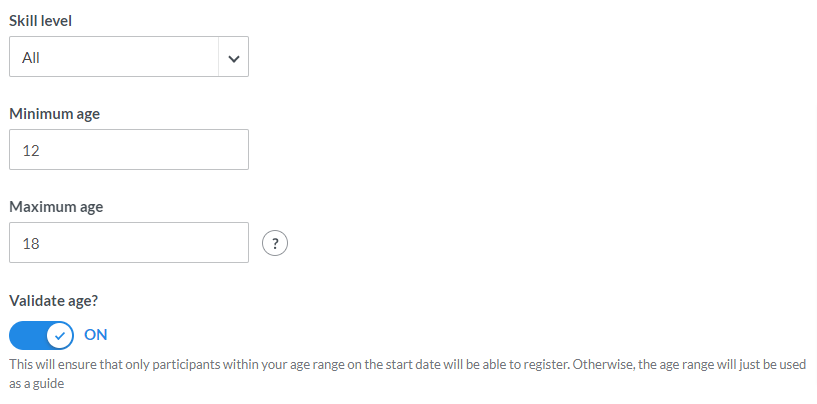
If this is a Junior program, you will also have the option to fill in a minimum and maximum age for specific programs. You can also choose to validate age to prevent players from registering for a program they are not eligible for.
NOTE: If you are creating "reoccurring sessions", you can set the date of the week the sessions will be on as well as the number of weeks ahead of time players can register.
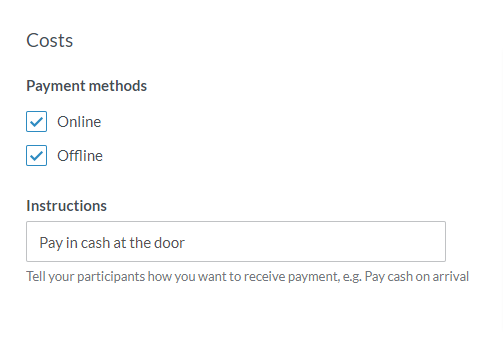
If you do not plan to take payment online, you can set up the program to have "Offline" payments with a description of how to pay in person.
You can now also select courts for the programming courses.

NOTE: In the "Description" and "Confirmation" sections of the above form, you can now add in hyperlinks.
Step 7: Once you have complete all the information select ‘Save Course’ to be directed to an overview of the course created. In this example, we created a single session
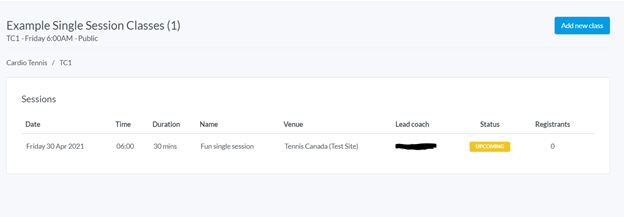
Step 8: To view the session details click onto the session. The next screen will display the number of registrations, and also provide the roster screen

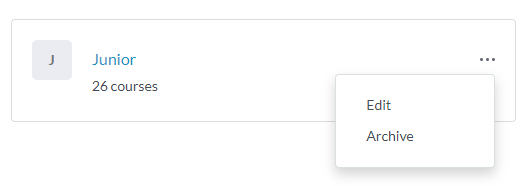
NOTE: If you need to edit a course quickly after the course is created, you can go to the Categories page and click on the 3 dots next to the name of the course and click "Edit". This will bring you to the Course Info page where you can edit the general details of the course.
Comments
0 comments
Article is closed for comments.